

We all relate to using new software or a gadget, overwhelmed by its features and functionalities. Guess what can be the guiding light? A well-crafted user guide!
A user guide provides instructions and information on using a product or service. It helps businesses guide users, reduce support costs, improve customer satisfaction, and enhance the overall user experience.
In this blog, we will learn how to create a guide, understand its different types, and explore the best user guide tools you can consider this year.
What Is a User Guide?
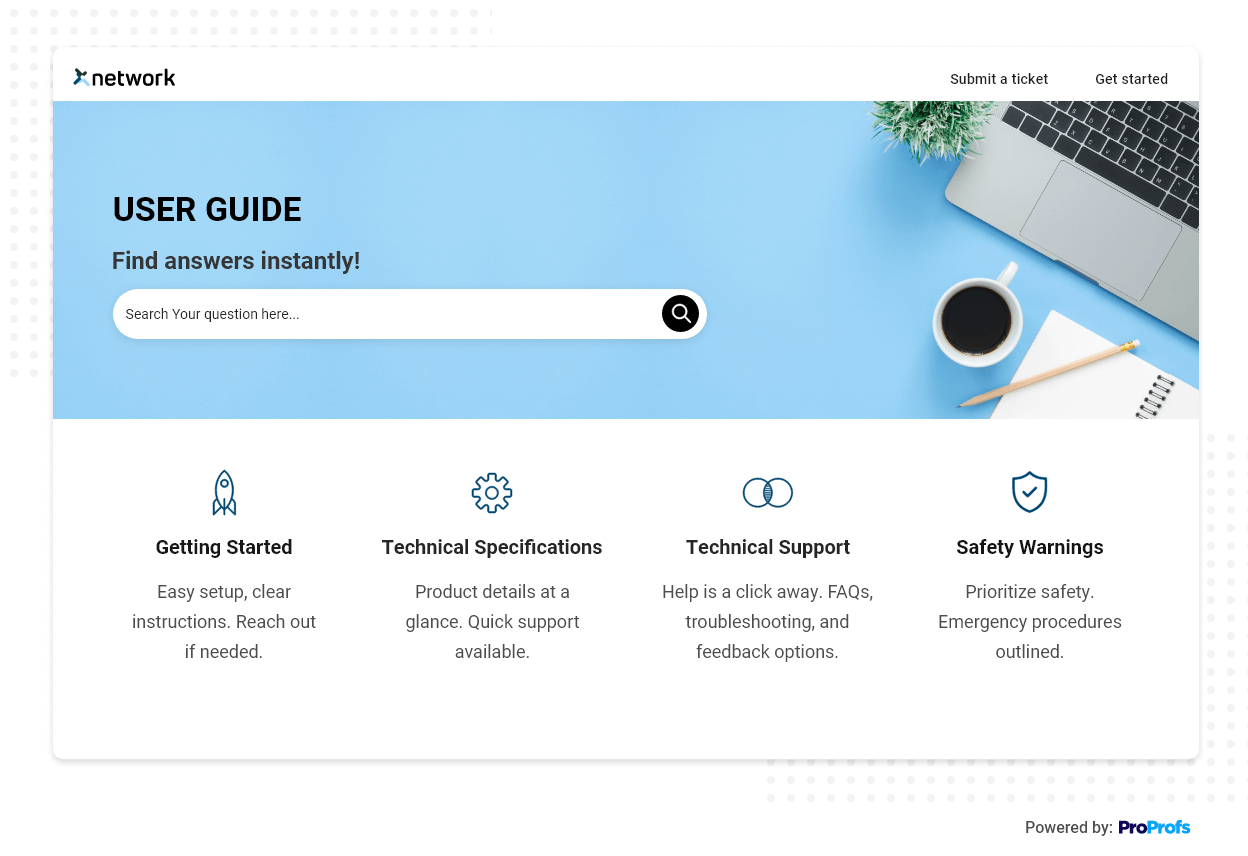
A user guide is a comprehensive document that provides step-by-step instructions, explanations, and troubleshooting tips on using a particular product or service.
It is designed to simplify complex information and make it accessible to users, regardless of their level of expertise.
By providing clear instructions and guidelines, user guides empower users to navigate and utilize the product or service independently, reducing the need for extensive customer support, as users can refer to the user guide to answer their queries and issues.
Well-crafted user guides demonstrate a commitment to user experience and customer success, positioning the company as user-focused and trustworthy.
Read More: Best Process Documentation Software in 2024
Best Tools for Creating User Guides
A user guide software helps businesses create and manage user guides efficiently. It simplifies documenting product or service instructions, allowing businesses to structure and present information in a user-friendly format.
Read More: Best User Documentation Examples
Let’s explore some of the robust user guide tools:
ProProfs Knowledge Base
ProProfs Knowledge Base simplifies the creation of user guides with its user-friendly interface and a Word-like AI text editor with built-in prompts. It allows you to import files and images directly into your user guides, making it easy to include existing content and resources.
Multiple authors can work on the same user guide simultaneously, ensuring all team members can contribute their expertise. The version control feature allows users to keep track of different versions of their guides, making it easy to revert to previous iterations if needed.
You can track metrics like article views, time spent on pages, and search queries. These insights help continuously improve user guides based on user behavior and preferences, resulting in a more effective and user-centric documentation experience.
Pricing: As far as its pricing goes, it offers a forever free plan for up to 25 articles with all premium features. Paid plan starts at $19.99/month for 25+ articles.
Whatfix
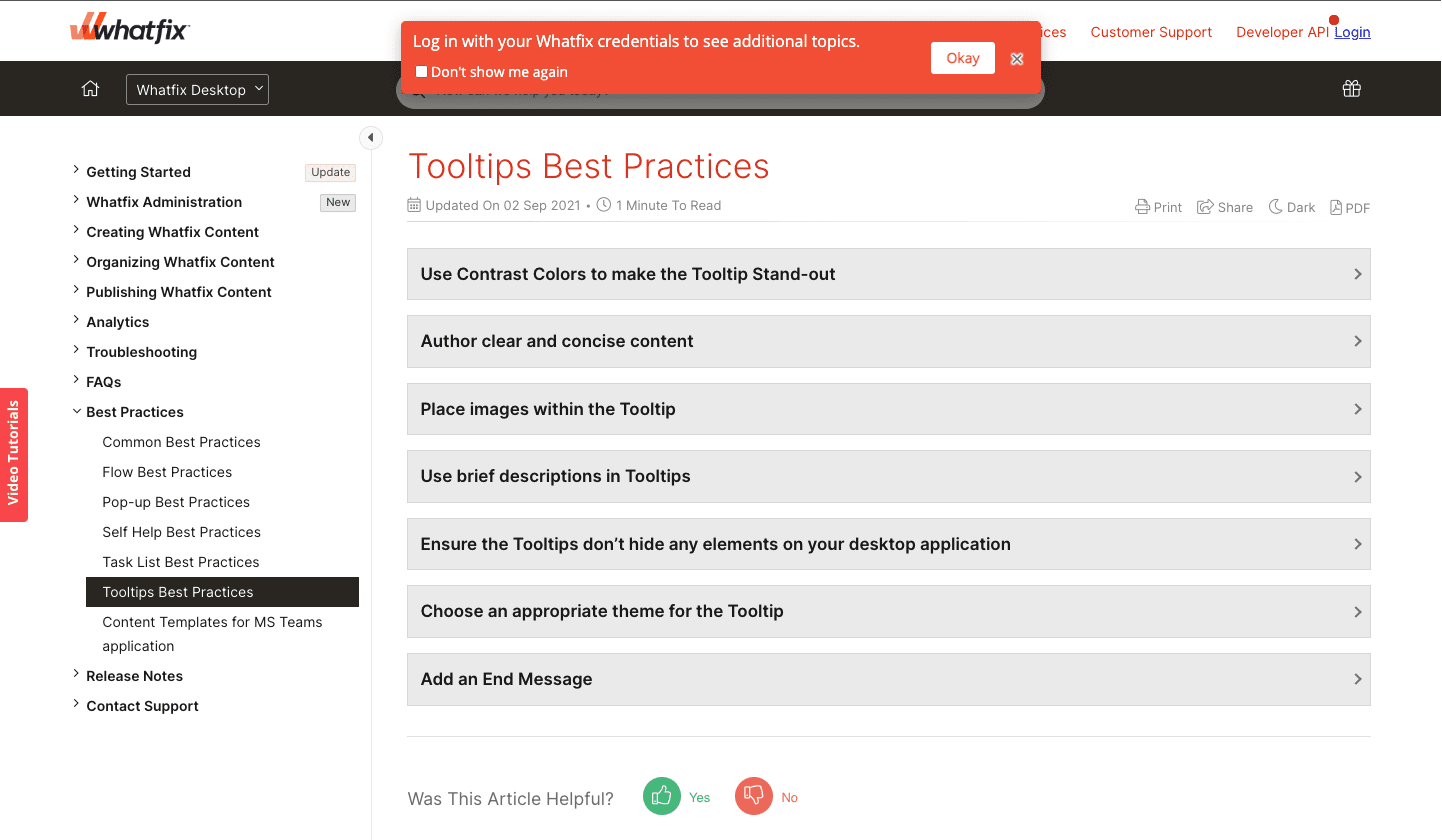
With Whatfix’s no-code experience, users can quickly create engaging and interactive content without coding knowledge or IT involvement. The Whatfix Editor offers an easy-to-use, intuitive interface compatible with all major browsers, making it accessible to a wide range of users.
Its content aggregation engine allows users to contextually present the most up-to-date and relevant learning content at the moment of need. It automatically curates content from different knowledge bases and sources, centralizing and showcasing it within the application.
You can repurpose flows into multiple content types simultaneously, saving time and effort. It also simplifies content versioning with content lifecycle management, allowing users to track changes from the initial draft to production.
Pricing: Whatfix offers a custom pricing model.
Dokit
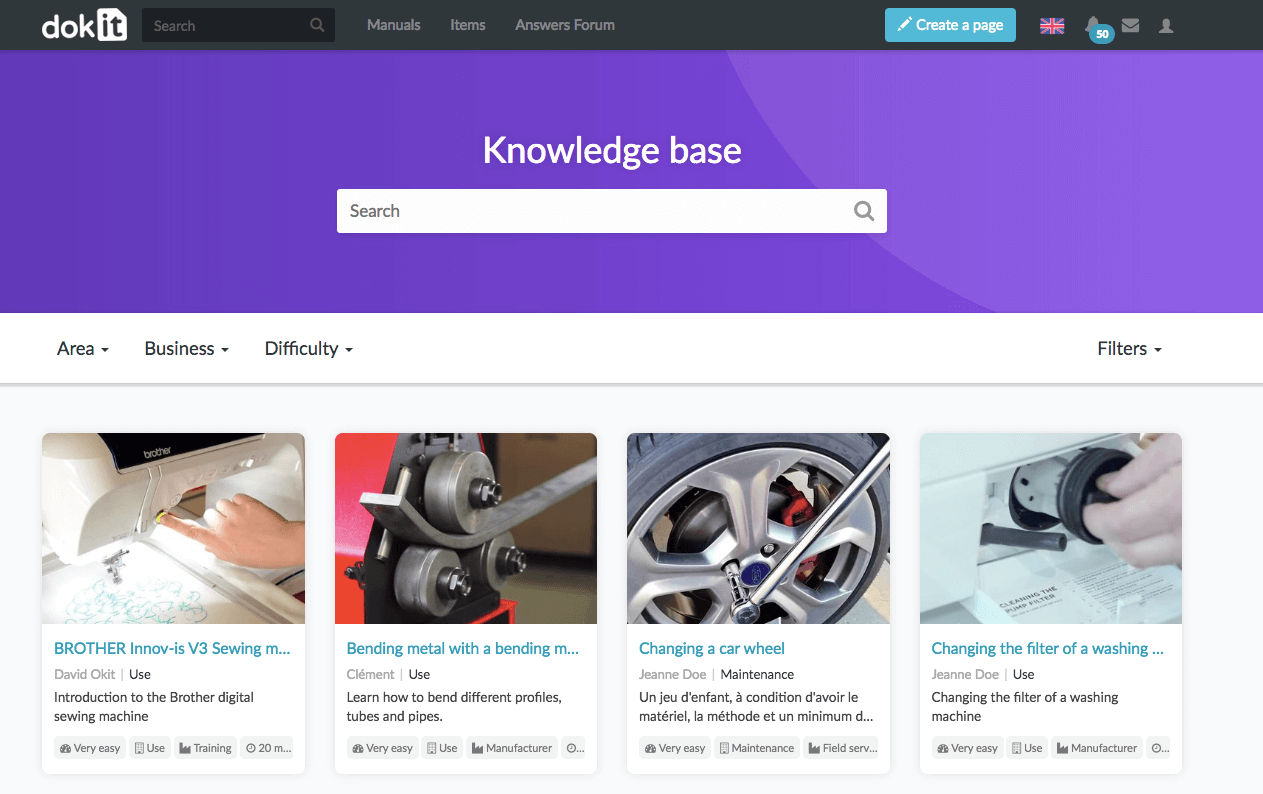
Dokit’s intuitive editing features and predefined templates allow users to create guides and instructions with just a few clicks. It saves time and effort by providing a user-friendly interface and eliminating the need for complex formatting.
Its efficient organization capabilities let users easily organize and control content categorization, tagging, metadata, and workflow validation. This ensures that the user guides are well-structured and easily navigable, making it effortless for users to find the information they need.
Its collaborative features allow users to actively engage with their audience, collect feedback, and answer questions. This helps continuously improve the content and ensures that the user guides are always up-to-date and relevant.
Pricing: Dokit’s Starter plan starts at $66/user/month.
Scribe
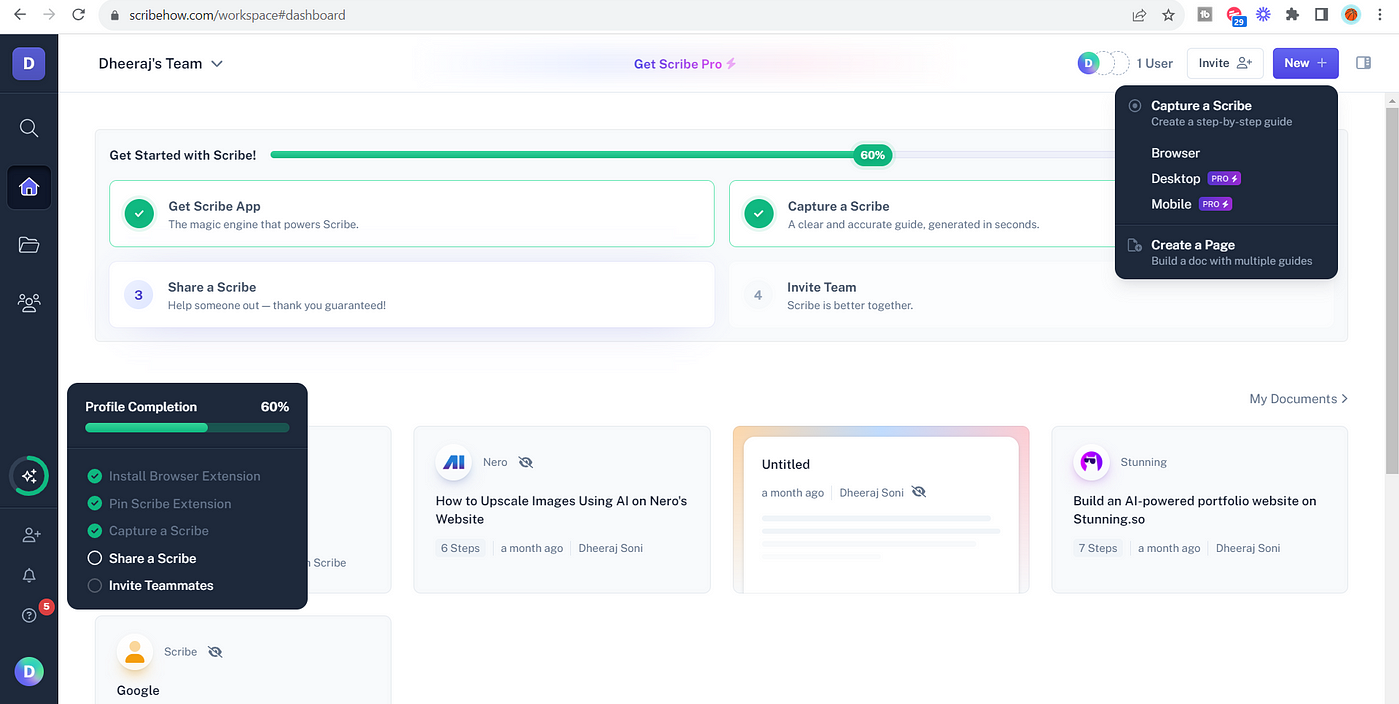
Scribehow’s Scribe recorder turns any digital process into a step by step guide. It automatically creates a guide complete with text and screenshots by simply turning on the recorder and walking through the process. It eliminates the need for manual formatting and screenshot capture, saving time and effort in user guide creation.
Scribehow also provides predefined templates and an intuitive interface, making it easy to create user guides in seconds. You can quickly document and share any process for internal use or customer-facing purposes.
It allows for the rapid onboarding of new teammates by creating onboarding materials and sharing tips and tricks in a visually appealing format. Its ability to embed training guides in internal help centers, wikis, and knowledge bases ensures the information is easily accessible to the team.
Pricing: Scribe offers a free plan. The Pro plan starts at $23/seat/month.
Notion
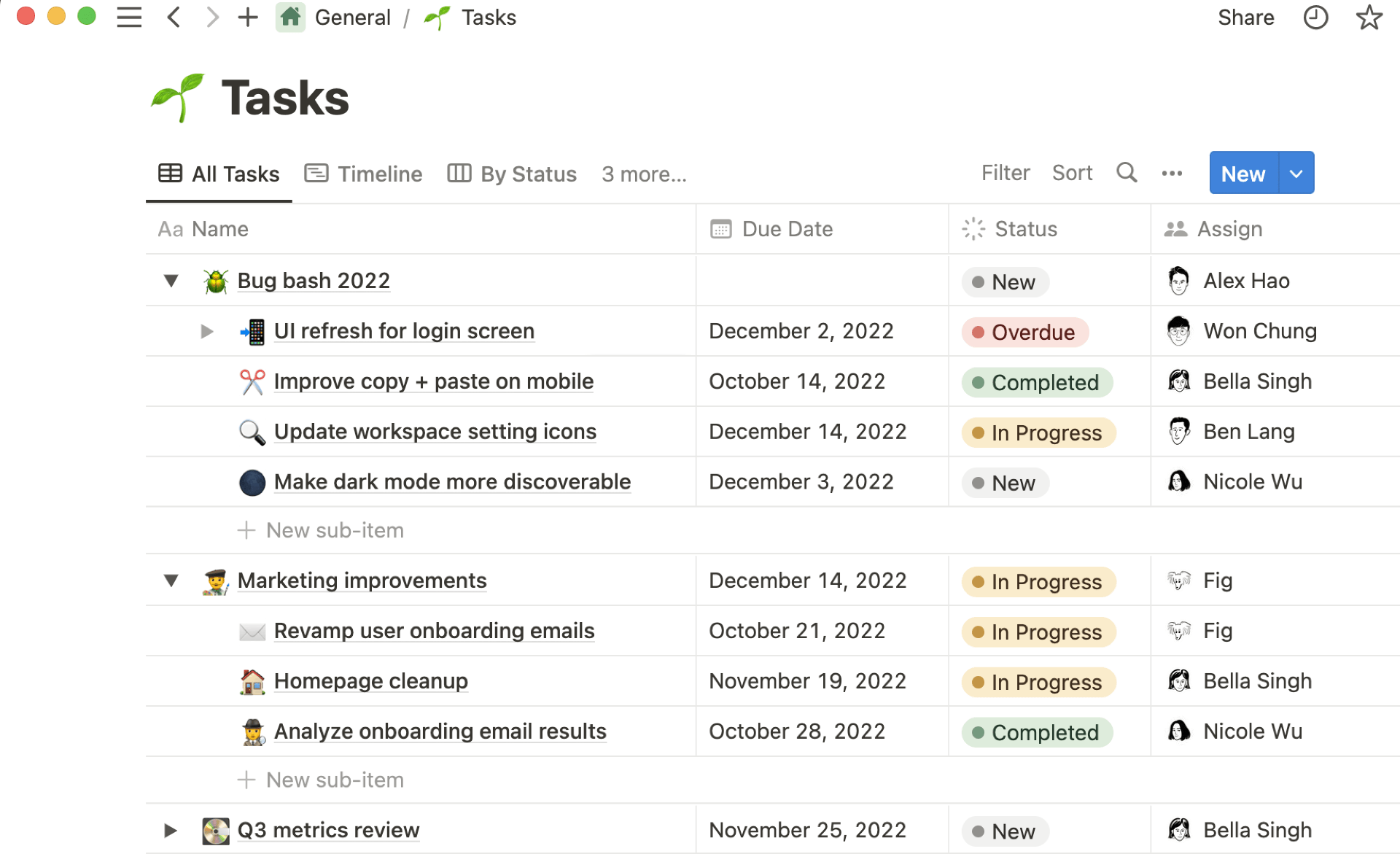
With Notion’s versatile editing capabilities, users can create rich and interactive content by combining text, images, videos, and more. The intuitive drag-and-drop interface makes adding and arranging different elements within the user guide easy, enabling a highly customizable and engaging experience.
Notion also offers various templates and formatting options for creating user guides that provide a starting point and structure for the guide, ensuring the content is well-organized and easy to navigate. You can use features such as headings, bullet points, checkboxes, and tables to create user-friendly guides that effectively convey information.
Multiple team members can collaborate on the same user guide in real time, gathering input, exchanging ideas, and refining the content quickly. The ability to leave comments, tag team members, and assign tasks streamlines the collaborative process. It ensures everyone is on the same page when creating and maintaining user guides.
Pricing: Notion offers a free plan. The Plus plan starts at $8/user/month.
Best Practices to Create Comprehensive User Guides
To create user guides that effectively communicate information, facilitate user learning, and provide a positive overall user experience, you can follow some simple yet essential best practices. Let’s discuss those.
Use Clear Language
Clear and concise language ensures your target audience quickly understands your user guide. Avoid using technical jargon and complex terminology that may confuse or alienate users.
Use simple instructions, providing clear explanations of each step or concept.
Organize Your Guides With a Hierarchy
A well-organized user guide with a clear hierarchy makes navigating and finding the information they need easier. Use headings, subheadings, and bullet points to break the content into smaller, more digestible sections.
This helps users quickly find specific topics and lets them skim through the guide if they want specific information.
Use a Combination of Images, Videos, and GIFs
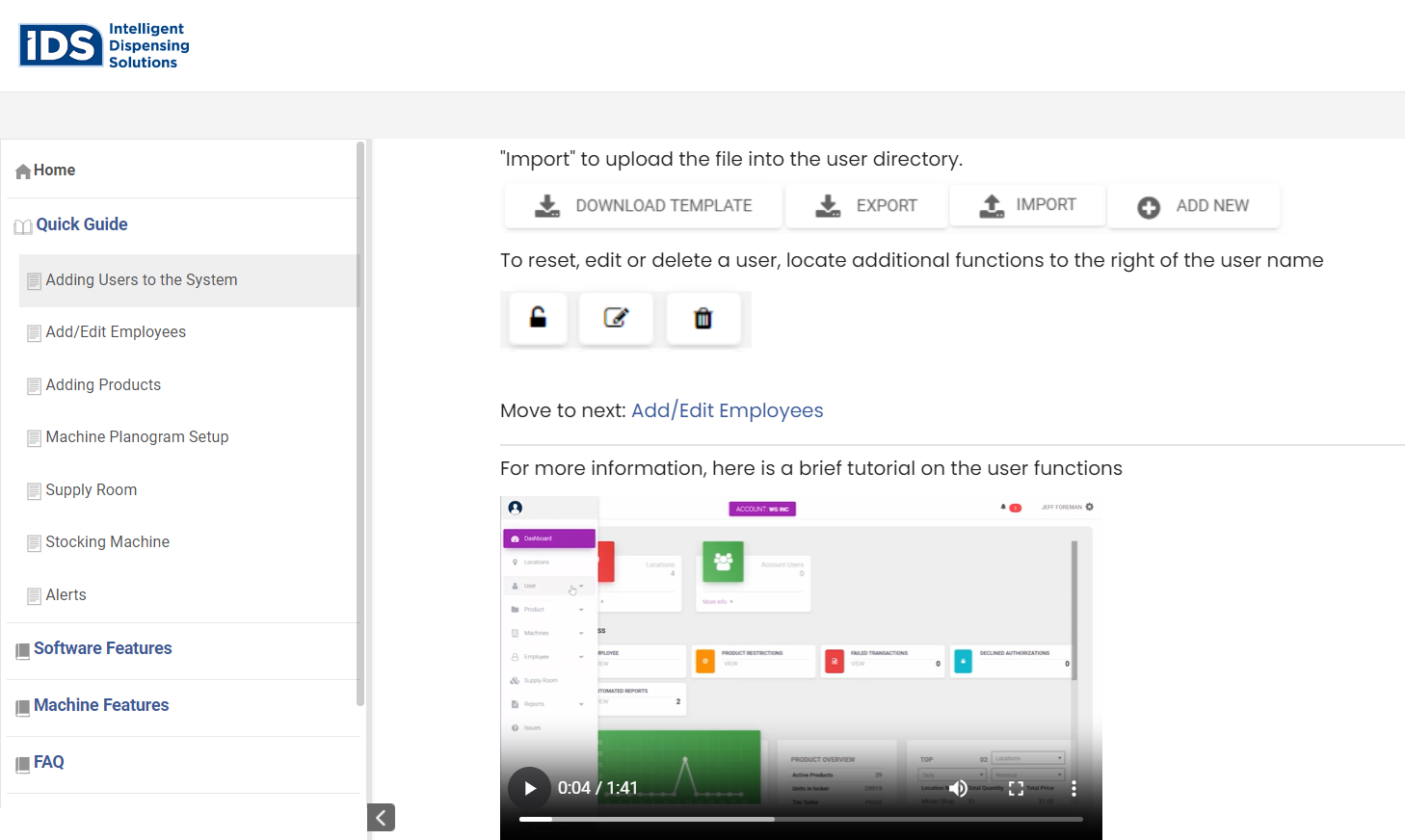
Using visual elements in your user guide helps to enhance user understanding. Images, videos, and GIFs can visually demonstrate steps, features, or concepts, making them easier to comprehend.
Visual aids also cater to different learning styles and can be particularly helpful for users who are more visually inclined.
Index It on Search Engines
Ensure that your user guide is accessible to a broader audience by indexing it on search engines.
Align your guide’s content with relevant keywords and optimize it for search engine optimization (SEO) to improve its search ranking.
This enables users to easily search for specific information or troubleshoot steps to find your guide.
Provide In-app Guidance
Integrating user guidance within your application or product helps users access information without leaving the interface.
In-app guidance can be tooltips, pop-ups, or contextual help that appears when users encounter specific features or actions.
By providing immediate assistance within the application itself, you offer users on-demand support, reducing the need for them to look up external resources.
Create Contextual User Guidance for Different Types of Users
Tailoring your user guide to different segments helps cater to their needs and skill levels.
Identify the different types of users who will interact with your product or service and create separate sections or versions of the guide for each group.
This ensures users find information and guidance relevant to their proficiency or requirements.
Collect Analytics and User Data on How Your Guides Are Being Used
Implement analytics tools to track user interaction with your guide. Analyzing data within the guide, like page views, time spent on specific sections, or search queries, can provide valuable insights.
It helps you understand which sections are most visited, identify potential areas where users struggle or face confusion, and make data-driven improvements to the guide.
Ask Users for Feedback
Regularly seek feedback to improve your user guide continuously. Provide channels for users to submit feedback, ask questions, or report any confusion.
Feedback from actual users can help identify areas that may require clarification or improvement, allowing you to address any gaps in the guide’s content.
Regularly incorporating user feedback ensures your guide remains relevant, intuitive, and user-friendly.
What Does a User Guide Include?
A well-crafted user guide effectively communicates product usage and best practices, empowers customers, and ensures that the product delivers the expected value. Let’s discuss its primary elements.
Product Introduction
This section provides an overview of the product or service and its intended use.
It typically includes a high-level description of the product’s main features, benefits, and advantages. The introduction sets the tone for the entire guide and serves as a guide’s starting point for the customer.
Installation and Set Up
This section gives instructions on how to install the product, its hardware, and software components or set it up for use.
This could include downloading and installing software, configuring settings, or connecting to external devices. It is critical as it is the customer’s first touchpoint with the product, and clear instructions could prevent errors or problems.
Read More: How to Create Software Documentation
Product Features and Use Cases
This section describes the product’s essential features, how to use them, and their intended purpose. It ties the product to specific customer needs and helps them understand how to use it to solve their problems.
This section usually includes screenshots, diagrams, or videos that provide visual explanations, and it’s essential to ensure that instructions are clear and detailed enough to complement visuals.
Product Operation/Usage Guidelines
This section provides stepwise instructions on how the product should be used to perform specific actions.
This could include how to start and stop the product, use its controls, and access various features. It is essential to be as clear and concise as possible without assuming prior technical knowledge on the part of the customer.
Troubleshooting Tips
This section lists the most common problems customers could encounter while using the product and provides instructions on how to resolve them.
It could include error messages, how to reset the product, or how to diagnose technical issues. This section is critical as it helps customers resolve issues quickly and prevents frustration and negative experiences with the product.
Frequently Asked Questions (FAQs)
This section provides answers to common questions that customers may have regarding the product.
FAQ software helps you cover topics like billing inquiries, usage limitations, or potential issues that customers could encounter. It is a useful section as it anticipates customer concerns, reducing the number of support requests related to trivial problems.
Glossary of Terms
This section provides explanations for technical terms or acronyms used throughout the guide. It ensures that customers understand the terminology and avoid confusion or conflicting understanding.
Types of User Guides
One way to engage with customers at different points of their journey is by providing additional user guides for your products.
The most popular and widely used types of user guides are:
Instructional Manuals
These are comprehensive guides that provide step-by-step instructions on how to use a product or perform specific tasks.
They usually cover installation, setup, operation, maintenance, and troubleshooting. Instructional manuals are often provided in a print or digital format and can be used as a reference when users need detailed guidance.
Read More: How to Create an Awesome Instruction Manual for Your Customers
How-to Guides
These focus on specific tasks or actions users want to accomplish with a product. These guides provide clear instructions and explanations on performing particular activities or achieving desired outcomes.
They are typically more concise and targeted than instructional manuals, providing users with quick and easy-to-follow instructions.
Training Manual
These are crafted to provide comprehensive training on using a product. It is commonly used for internal training purposes or for providing in-depth knowledge to new users.
Training manuals beyond basic instructions could include exercises, case studies, and additional resources to enhance user understanding and proficiency.
In-app Guidance
This refers to providing contextual help and guidance within a product’s user interface. It can take the form of tooltips, pop-ups, or interactive tutorials that appear at relevant moments during user interaction with the product.
In-app guidance offers users real-time support, making navigating and understanding the product features easier without needing to refer to external resources.
Knowledge Base
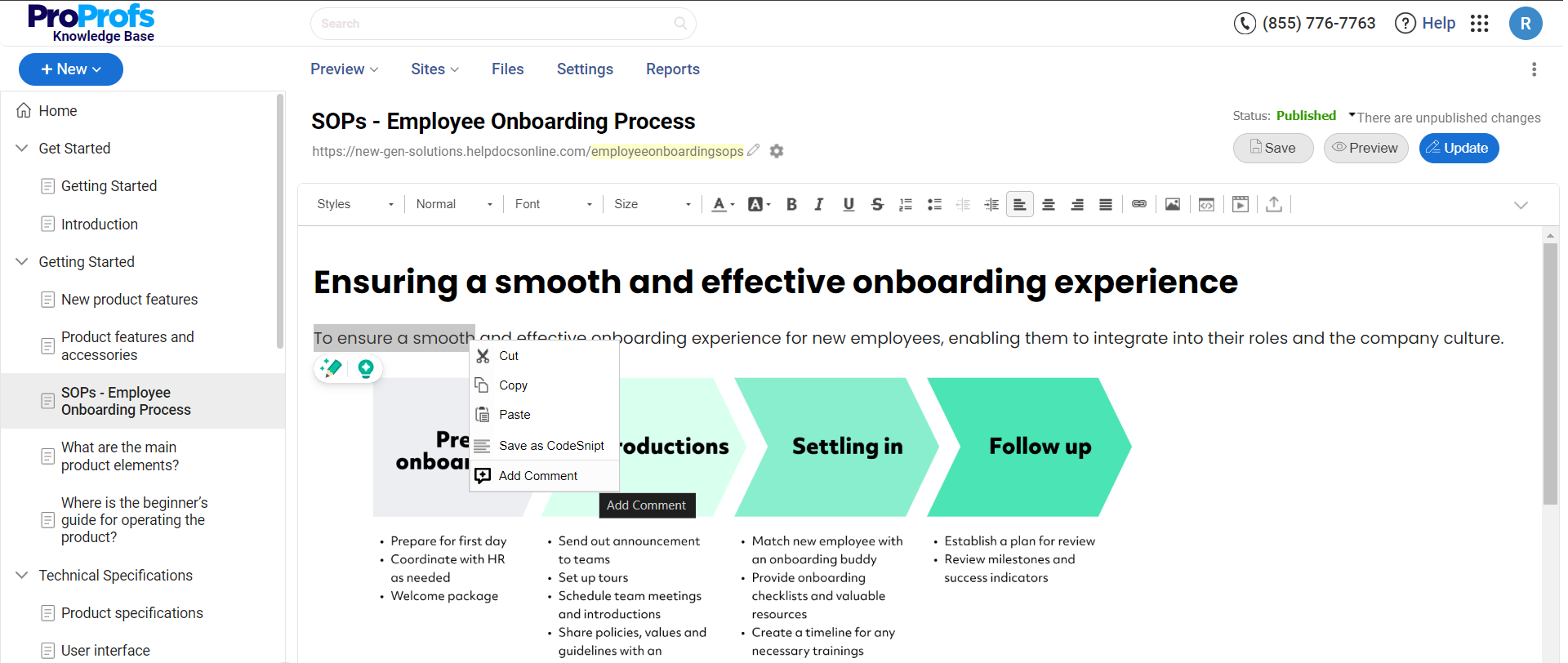
This online central repository contains articles or documents that provide detailed information about a product or service. It is usually organized in a searchable format and covers a wide range of topics related to the product. Knowledge bases often include:
- Step-by-step instructions
- Troubleshooting guides
- FAQs
- Users can access other resources to find answers to their questions or learn more about the product
FAQs
Frequently Asked Questions (FAQs) are a compilation of commonly asked questions and their corresponding answers regarding a product or service.
FAQs can address various topics like product features, technical issues, account management, or billing inquiries.
They serve as a quick reference for users, allowing them to find answers to their questions without contacting customer support.
Benefits of User Guides
User guides play an essential role in providing users with the information, guidance, and support they need to use a product or service effectively. It offers numerous other benefits, too.
Let’s discuss them one by one.
Faster Time-to-Value and Increased Adoption Rates
User guides play an essential role in reducing the learning curve for users, enabling them to quickly understand and use a product effectively.
By providing clear instructions, demonstrations, and explanations, user guides help users get up and running faster, leading to a faster time-to-value.
Comprehensive user guides also increase the chances of successful product adoption, as users feel confident and empowered to explore and utilize the product’s full capabilities.
Self-Service Support to Reduce Support Tickets
User guides serve as a valuable self-service resource, empowering users to find answers to their questions and troubleshoot common issues independently.
By providing comprehensive documentation, troubleshooting tips, and frequently asked questions, user guides reduce the dependency on customer support for routine inquiries.
This saves time and resources by deflecting support tickets and enables the support team to focus on more complex or unique customer issues.
Read More: How to Reduce Support Tickets With Self-Service Knowledge Base
Empowering Users for Enhanced Productivity
Well-crafted user guides empower users by providing the information and knowledge they need to utilize a product’s features and capabilities independently.
This empowerment improves user confidence, reduces frustration, and fosters a positive user experience. Empowered users are more likely to explore advanced features, uncover hidden benefits, and become advocates for the product, leading to increased customer satisfaction and loyalty.
Consistent and Accurate Information
User guides ensure users can access consistent and accurate product information.
By providing a centralized and well-maintained source of information, user guides ensure the clarity and understanding that can arise from relying on fragmented or outdated information sources.
Consistency and accuracy in the user guides contribute to a better user experience and eliminate potential missteps or errors in product usage.
Scalability and Accessibility
User guides can be easily scaled and updated to accommodate product updates, new features, or changes in user requirements. User guides can be revised and expanded as products evolve to keep pace with these changes, ensuring users can access the latest information.
Also, user guides can be provided in various formats, such as print, digital, or online, making them accessible across different platforms and devices, enhancing convenience and usability.
Examples of Effective User Guides
Throughout this guide, we discussed best practices for creating user guides, their types, and more. Now, let’s explore some examples of user guides to help you get started even better.
CDS Convert
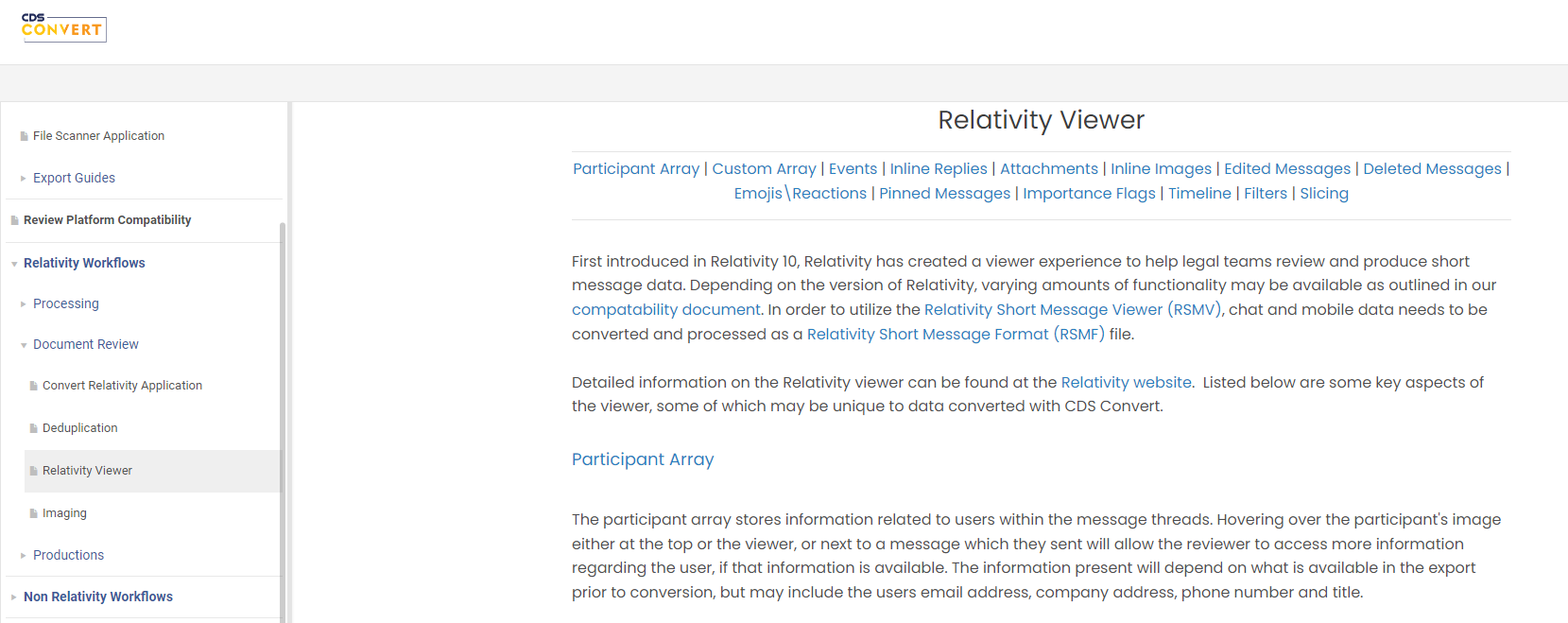
CDS Convert’s user-friendly approach to crafting user guides ensures simplicity and clarity. Navigating through their help documentation is seamless, providing step-by-step instructions with visual aids.
The well-organized structure and interactive elements enhance the overall user experience, making it easy for users to find answers and troubleshoot efficiently.
CDS Convert’s commitment to user-centric guides is evident in its approach, facilitating a smoother and more effective user journey.
IDS/IQ Help Support
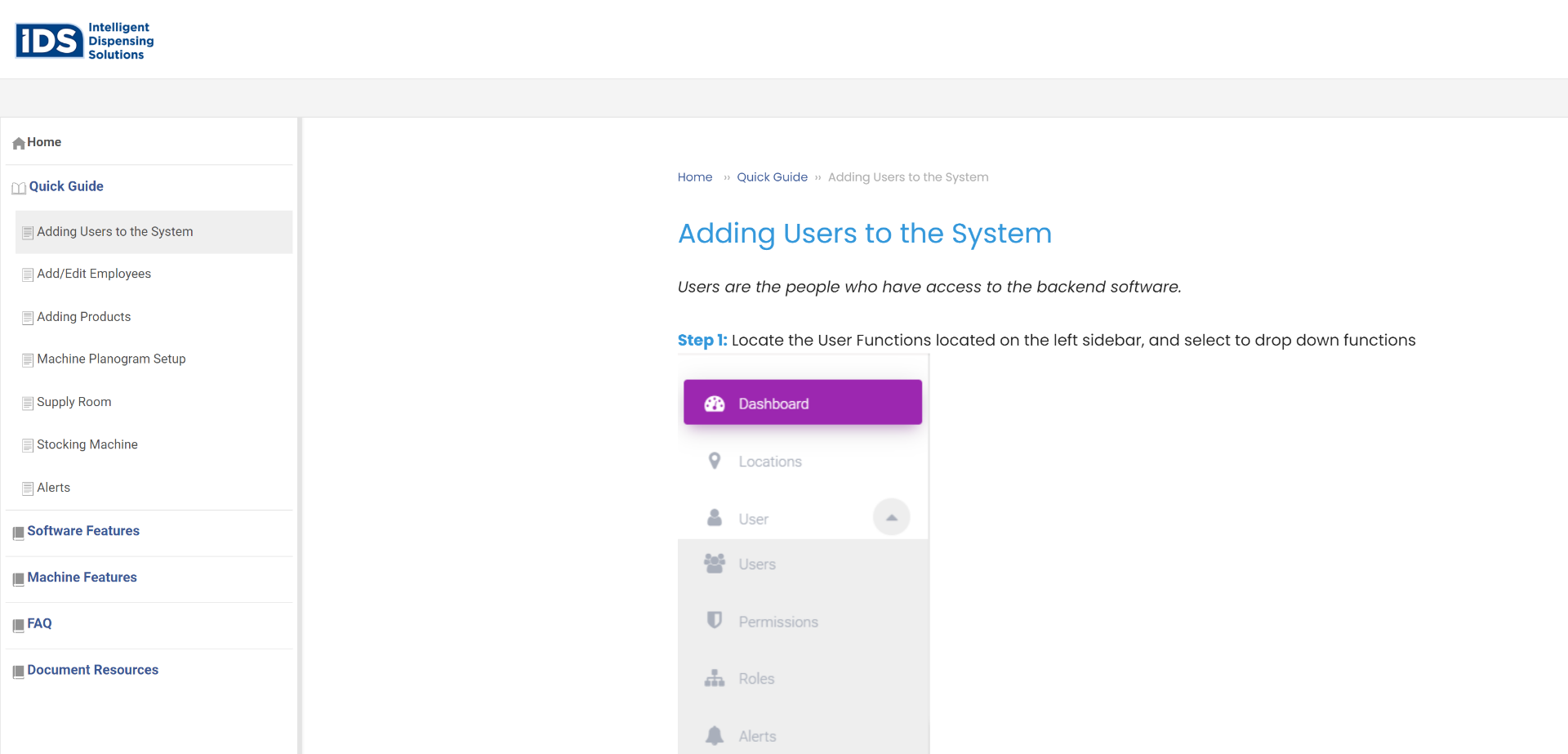
IQ Help Support focuses on clarity and accessibility. Its approach ensures users can easily navigate through help documentation, offering comprehensive insights and solutions.
Using visuals and a well-structured layout enhances the user experience, simplifying complex processes.
IQ Help Support’s commitment to user-friendly guides is evident, providing a valuable resource for users seeking assistance and information.
HockeyStack
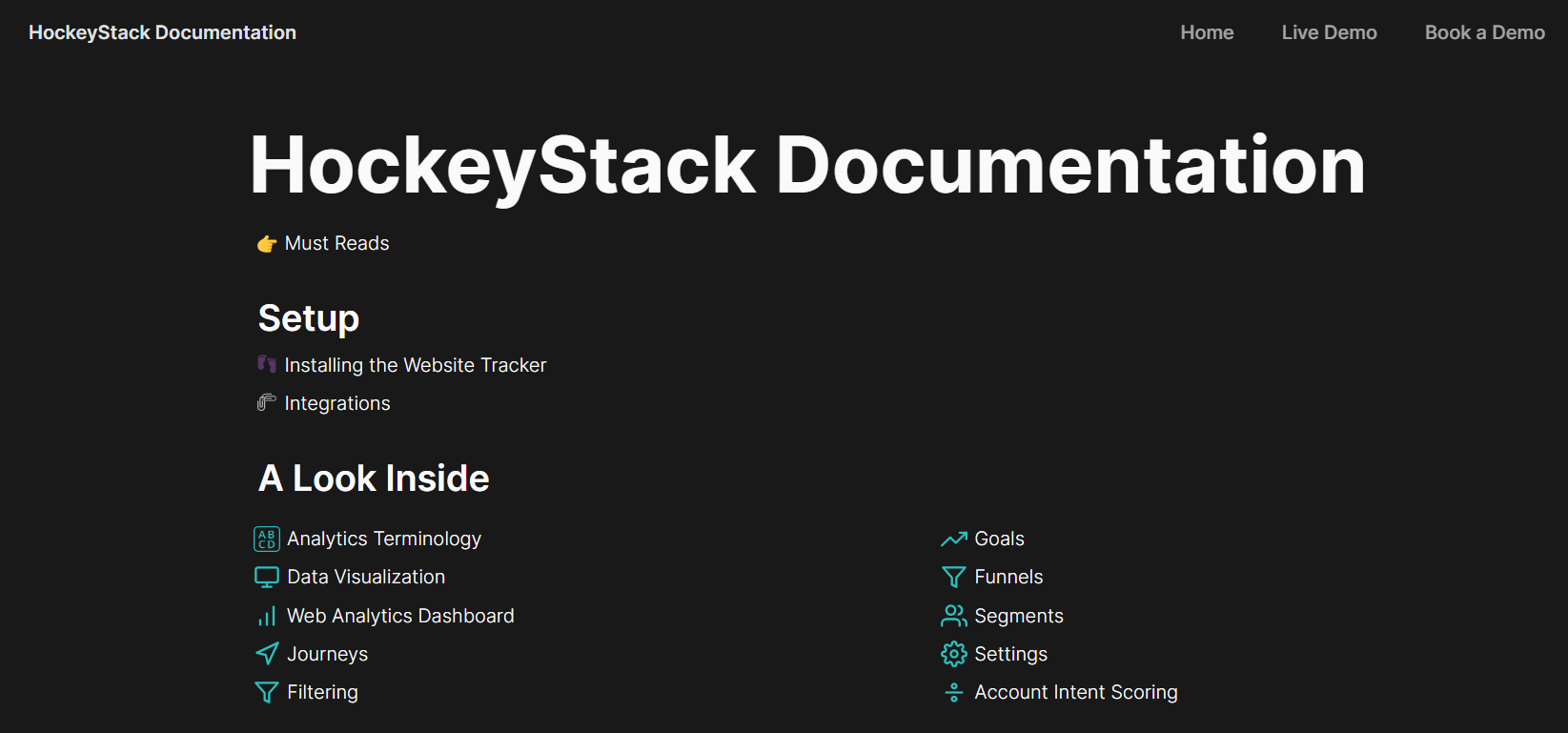
HockeyStack’s approach stands out for its meticulous detail and user-centric design. Navigating their documentation and offering in-depth insights and practical solutions is a breeze.
The guide is structured logically, with clear explanations and visual aids to simplify complex concepts. Its commitment to providing a user-friendly resource is evident, ensuring users can effortlessly harness the full potential of their analytics tool.
ManageEngine
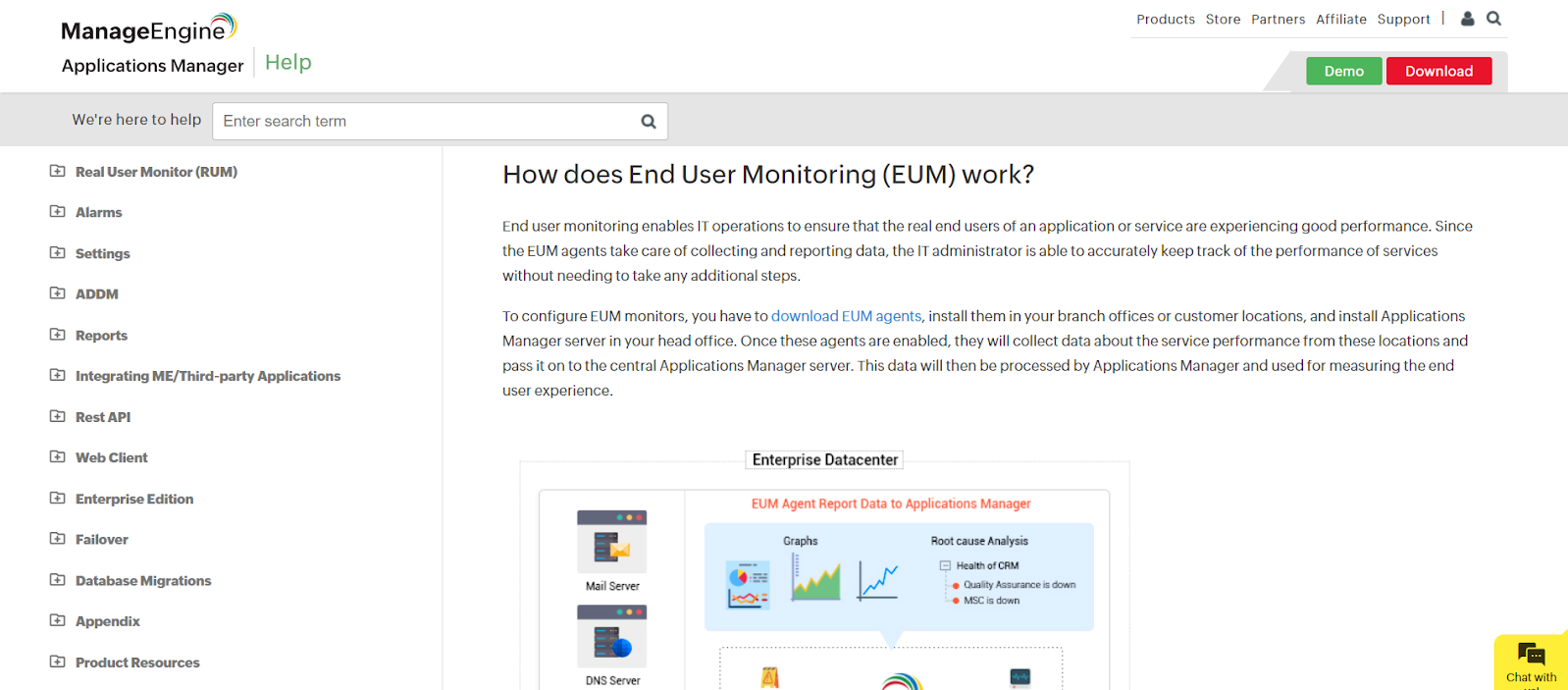
ManageEngine’s robust user guide writing approach provides detailed insights into licensing processes, featuring a well-organized structure and clear instructions.
Visual elements enhance the user experience, making complex licensing procedures more accessible. ManageEngine’s commitment to user-friendly guides ensures users can efficiently navigate and optimize their experience with Applications Manager.
Create Comprehensive User Guides to Enable Product Efficiency
User guides help businesses reduce support requests and improve user experience by providing clear instructions and information on using their products or services effectively.
To simplify creating user guides, businesses can opt for ProProfs Knowledge Base. With its AI text editor with built-in prompts, you can create clear and concise technical documents like user manuals. Its 100+ pre-built templates help you kick-start your content creation process in no time.
Collaboration tools like internal comments and smart user management allow your teams to work together seamlessly, making it easy to incorporate feedback and edits. Start creating comprehensive user manuals with ease! Explore the tool here!
FREE. All Features. FOREVER!
Try our Forever FREE account with all premium features!