

Knowing how to write software documentation is both an art and a science, as it serves as the bridge between complex software functionalities and their users.
According to a Stack Overflow survey, 34.7% of developers said poor documentation represents one of the most significant challenges they face at work.
Effective documentation solves these challenges, like struggling to understand legacy code, navigating a new application, etc., by offering clarity, reducing the learning curve, and fostering a better user experience.
In this blog, we will discuss the types of software documentation and their benefits and learn how to create them. We will also explore how software documentation tools can play a pivotal role.
| Related blog: How to Create Online Documentation? |
What Is Software Documentation?
Software documentation is the process of creating a technical document that explains everything about a software product, from its development and functionality to its features.
With step-by-step instructions demonstrated through diagrams, charts, and videos, software documentation helps end-users grasp your software tools and overcome challenges independently. Developers can also use this documentation as a reference guide to track the software development lifecycle when working on your software program.
For example, a user manual for a content management system (CMS) would offer comprehensive insights on using the CMS, covering topics from initial setup and creating content to managing user permissions and customizing the website’s appearance.
It would provide step-by-step instructions, screenshots, and tips for troubleshooting common issues, ensuring that users of all technical levels can effectively navigate and utilize the software.
What Are the Types of Software Documentation?
Software documentation can be categorized into several different categories. Deciding the kind of documentation you should create will depend on the audience and the intended use of the software.
Project Documentation
Project Documentation includes all the documents produced during the project lifecycle, outlining the project’s planning, execution, and closure phases.
It ensures all stakeholders clearly understand the project’s objectives, timelines, responsibilities, and progress. It’s essential for project management, enabling effective communication, planning, and assessment throughout the project.
Common types are:
- Technical design documents
- Project plans
- Project requirements specifications
Product Documentation
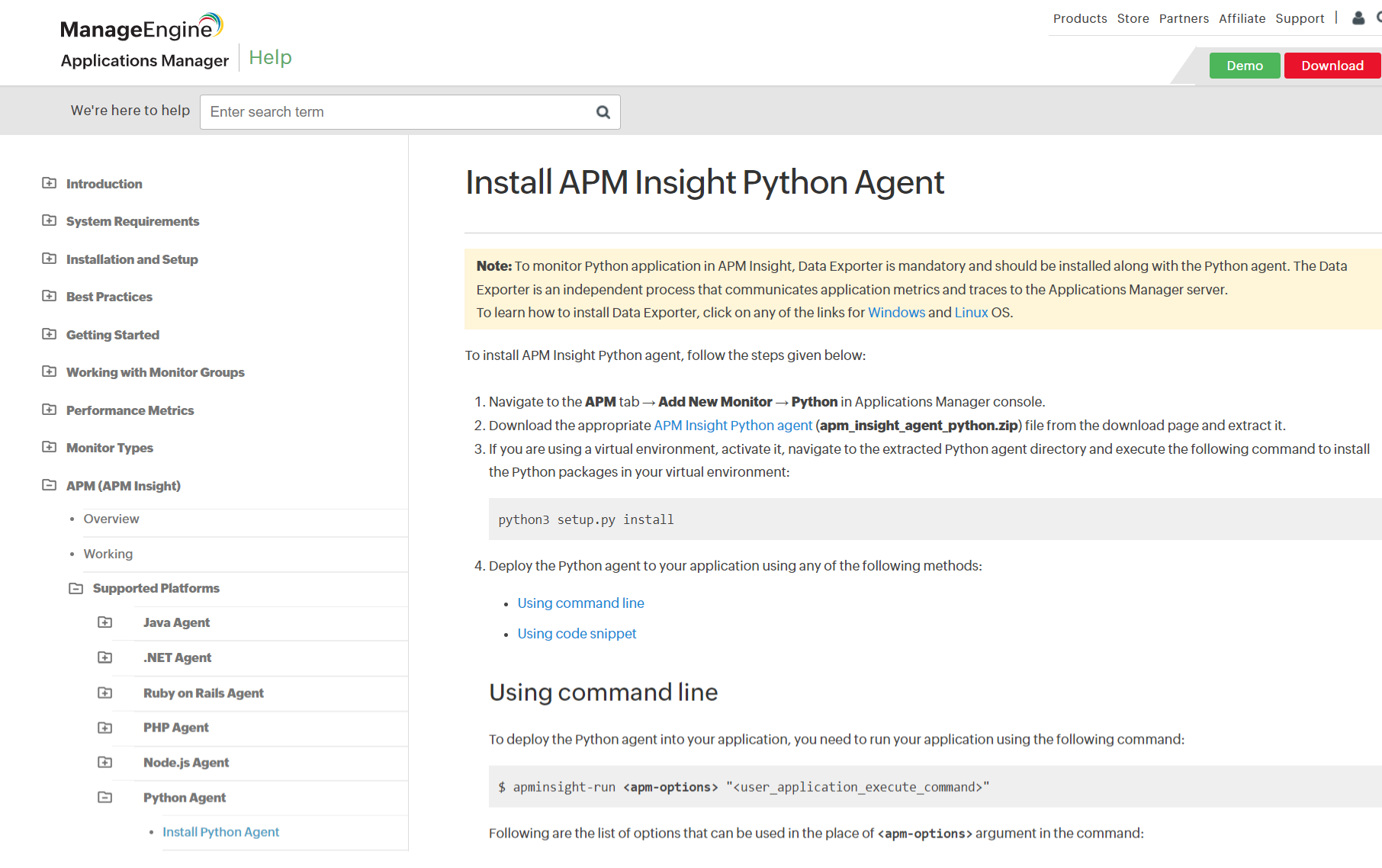
Product Documentation covers detailed information about a product’s features, functions, and use cases. It’s created to showcase the product’s capabilities and guide users in maximizing its potential.
It helps users understand how to use the product effectively and can assist in marketing efforts by highlighting its benefits and features.
Common types are:
- Instructional manuals
- Reference manuals
- Installation guides
Process Documentation
Process Documentation records and describes the processes and procedures followed within an organization or a software system. It provides a detailed guide for performing tasks correctly, ensuring consistency, quality, and compliance with standards or regulations.
Process documentation is valuable for training new employees, auditing business practices, and improving efficiency and quality control.
Common types are:
- Development plans
- Testing plans
- Release plans
- Bug tracking reports
Technical Documentation
Technical Documentation provides users, developers, and stakeholders with detailed information on the technical aspects of a product or system.
Understanding a product’s or system’s inner workings and facilitating development, maintenance, and troubleshooting is essential.
It serves as a reference for developers, ensuring that software can be accurately maintained, updated, or expanded over time.
Common types are:
- API documentation
- Data model documentation
- Architecture documentation
- User guide
- Release notes
- README
System Documentation
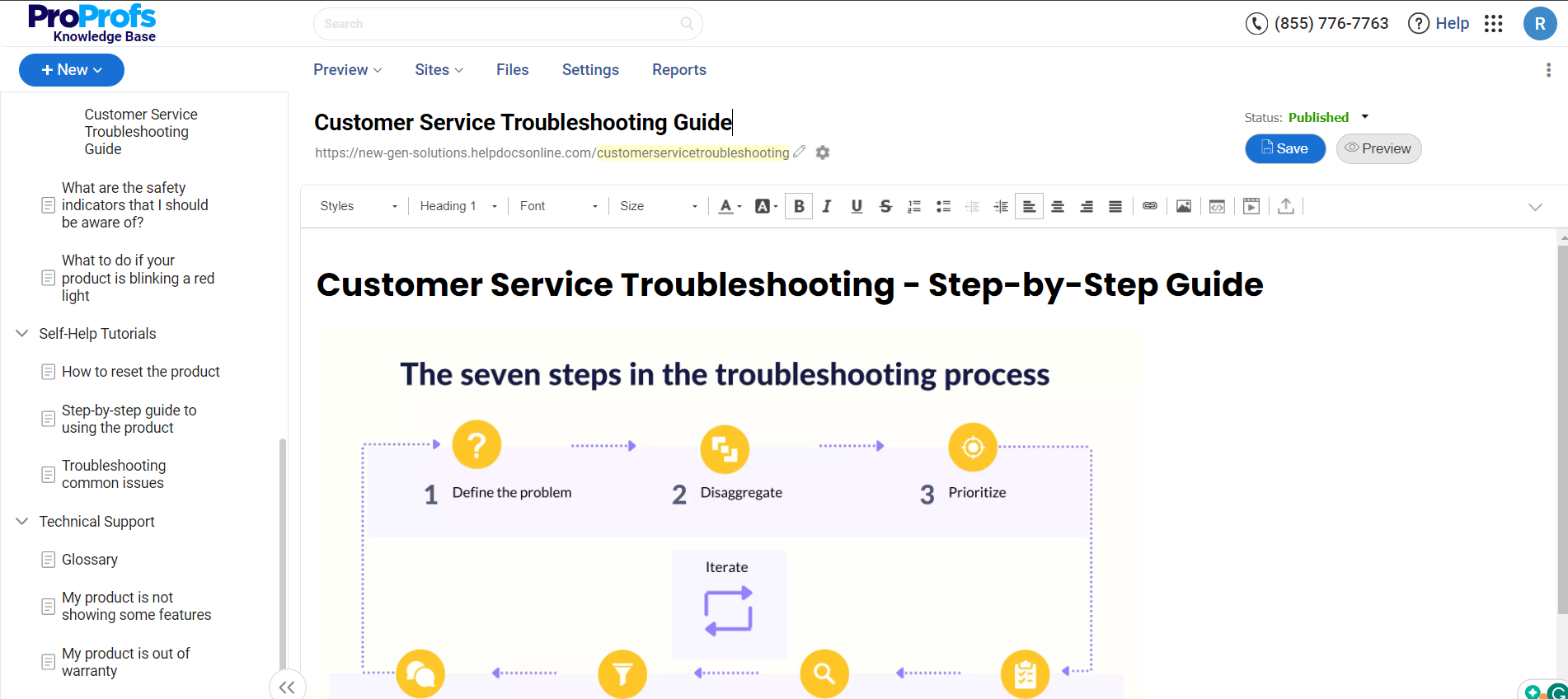
System Documentation enables a comprehensive overview of the system’s architecture, components, and dependencies. It is crucial for IT professionals and developers as it provides a roadmap of the system’s design and operation, enabling effective management, troubleshooting, and system scaling.
It ensures that the technical aspects of the system are transparent and accessible to those responsible for its maintenance and development.
Common types are:
- Troubleshooting guide
- Architecture documentation
- User manual
User Documentation
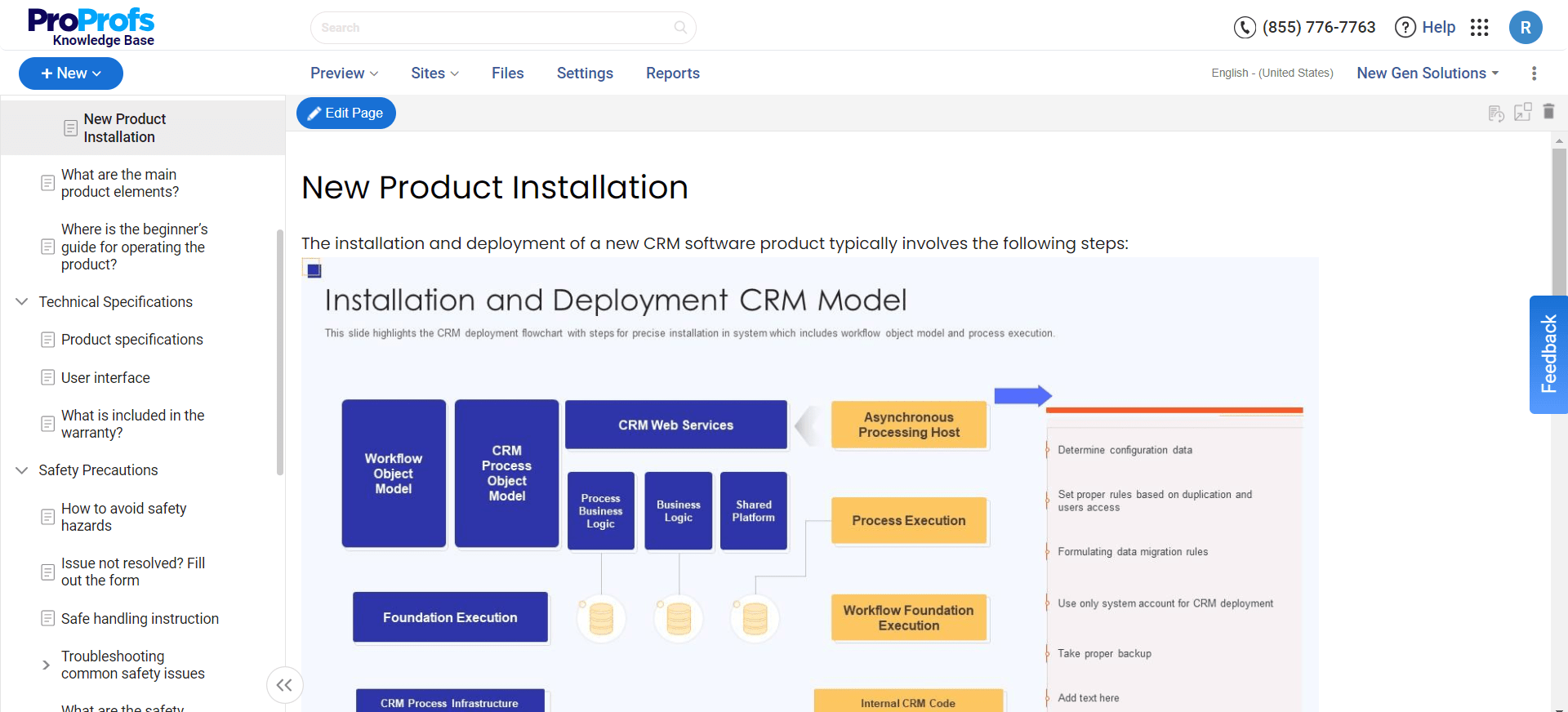
User documentation can also be labeled manuals or user guides and is designed to assist end-users in navigating and utilizing software or hardware. It is created to be accessible and understandable to its target audience, often incorporating visual aids like screenshots and videos to enhance comprehension.
Its primary objective is to ensure a positive user experience by providing the necessary support and guidance for users to achieve their objectives with the product efficiently.
Common types are:
- How-to guides
- Tutorials
- Reference docs
- Explanations
What Are the Benefits of Creating Software Documentation?
Creating software documentation gives your developers and end-users all they need under a single roof. Let’s explore its benefits.
Aids New Developer Onboarding
Onboarding new developers is a herculean task. You’ve to teach them all about your software development process from scratch so they can get up to speed faster and contribute meaningfully to the ongoing projects.
During onboarding, your job is to educate new hires without overwhelming them about their new roles.
That’s where software documentation helps. It equips new developers with all the assistance they need to perform tasks and solve problems independently without resorting to emails, calls, or shoulder taps. This independence gives them the confidence to excel in their new roles.
Elevates Customer Experience
Creating documentation for software products is a great way to enhance the customer experience. When customers have a reliable, single source of truth to search for necessary information, they can better make the most of your software.
The documentation comprises detailed articles and supporting imagery in the form of diagrams, flowcharts, and videos that help customers understand your product to the core and put it to best use.
Reduces Support Tickets
As the end-user experience improves, support tickets reaching your IT help desk decrease significantly.
Software documentation gives customers quick access to information in a format that is easy to consume. This enables them to troubleshoot problems independently without contacting your support team.
As your support staff is spared from answering repetitive questions, they can put all their focus on complex queries raised by users that require a more hands-on approach.
Enhances Product Quality
Creating software documentation brings to the surface critical information that your developers might need for product improvement and maintenance. It gives them access to all the historical data around the decisions made during the development stages, mistakes that hampered the progress, the stakeholders involved, and the time it took to complete the process.
Taking hints from the successes and failures of the past, software developers can make informed decisions to ensure that the quality of your product keeps improving.
How to Create Software Documentation
Writing entire software documentation from scratch is a daunting challenge. These 8 steps will give you a direction to follow and create documentation that’s easy to read and understand.
1. Integrate Documentation in the Development Process
Incorporate documentation as a non-negotiable part of the software development lifecycle. You can do so with the following:
- Ensure that no feature moves to production without accompanying documentation
- Bring onboard skilled technical writers who can champion the significance of documentation within your organization and facilitate the documentation process
- Provide the right tools to streamline the creation of necessary documentation, making it less of a burden for developers
The key is to unify the team’s understanding and appreciation for documentation’s role. Highlighting its benefits helps developers and technical stakeholders see documentation not as an afterthought but as an integral part of the development process.
2. Understand Your Target Audience
The nature of your target audience influences both the content and the style of the documentation. Documentation targeted at end-users should prioritize clarity and simplicity, offering step-by-step instructions for everyday tasks, insights into software features and capabilities, and practical examples to facilitate learning.
Similarly, documentation aimed at developers or technical stakeholders demands a focus on detailed technical aspects, like API documentation, data structures, algorithms, and descriptions of development, testing, and maintenance methodologies.
This approach is beneficial for technical writers and invaluable for marketing, engineering, product, and support teams. Start by utilizing existing user information and engaging with customer-facing teams to understand your audience better.
Develop audience personas, define user goals (e.g., database installation), and outline use cases (e.g., managing enterprise customers in a CRM system). Also, select the most suitable delivery formats (FAQs, wikis, or knowledge bases) and determine your content’s scope and detail level.
3. Establish Documentation Scope & Goals
Define what the documentation will cover and its objectives to create focused and purposeful content.
This step involves deciding on the types of documentation needed, such as user guides, API documentation, or installation manuals, and setting clear goals for each document’s goal.
For instance, you can focus on specific features or use cases or provide information needed to complete specific tasks.
4. Design a Documentation Content Strategy
Create a strategic plan for developing and maintaining your software documentation, which should align with the established scope and objectives, detailing who will oversee the documentation’s creation and upkeep.
Key aspects of this strategy are – setting a timeline for both the initial development and regular updates of the documentation, along with selecting the necessary tools and resources for the task. Also, instituting a robust review and revision process guarantees that the documentation remains precise and current.
Implement a documentation content strategy to maintain focus, efficiently allocate resources, and manage timelines. It ensures synchronization of documentation efforts with software release cycles, allowing you to anticipate upcoming needs.
5. Establish a Content Style Guide
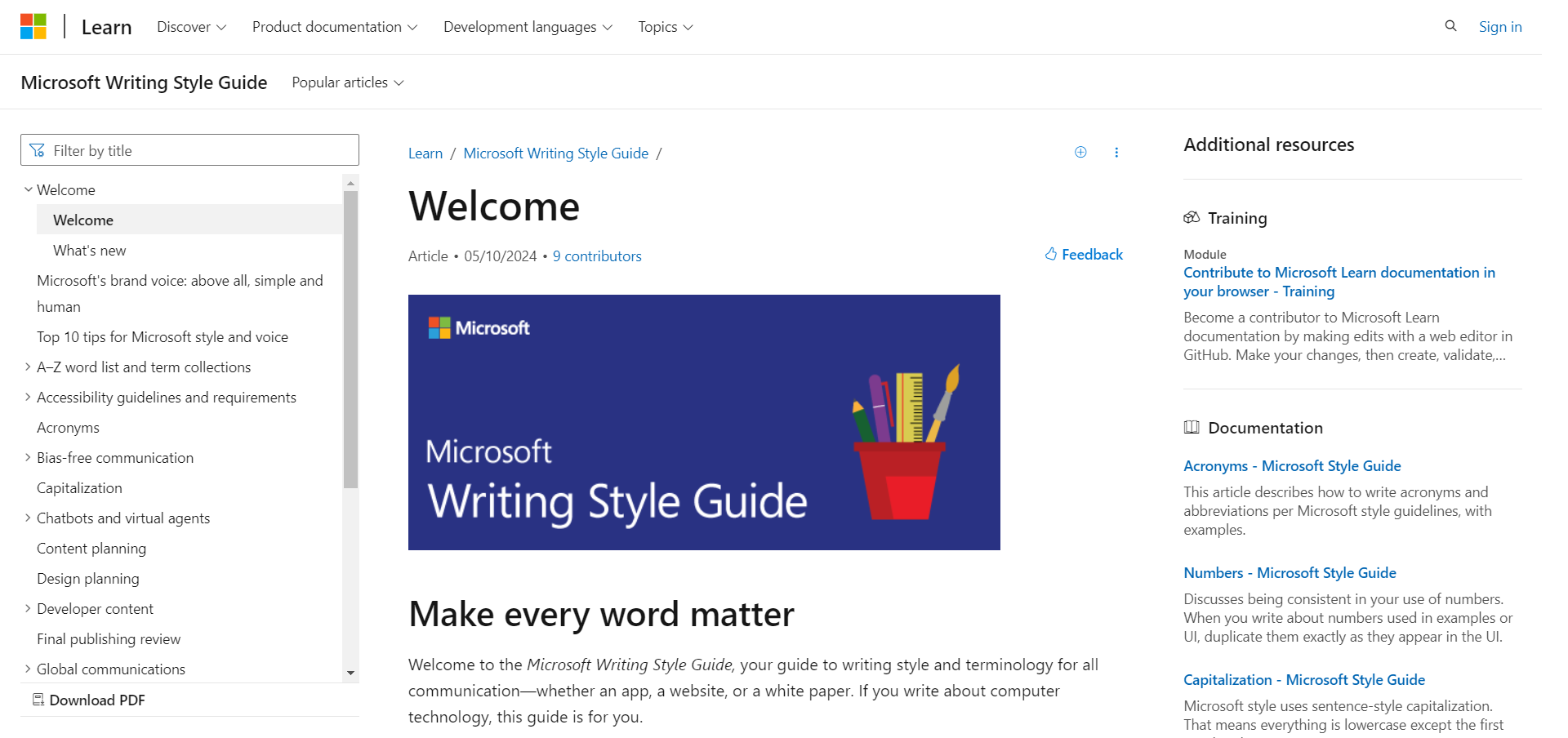
Develop a style guide for your documentation to ensure language, formatting, and presentation consistency across all documents. This guide should cover aspects like tone of voice, technical terminology, formatting standards, and visuals.
Consistency helps users find the information they need more quickly and improves their overall experience.
Include the following in your software documentation’s style guide:
- Standardized terminology (how to refer to your company and software)
- Voice & tone
- Page formatting (use of headers, paragraphs, lists)
- Guide on word choice (for example, should it be ‘platform’ or ‘software’)
- Use of multimedia – videos, gifs, images, etc.
6. Emphasize Clarity & Brevity in Writing
Write clear and concise documentation to make it easier for users to understand and follow. Avoid overly technical language, jargon, and unnecessary details to help make the documentation accessible to a broader audience.
Include examples, step-by-step guides, and frequently asked questions to enhance clarity and usefulness.
7. Review & Revise Through Feedback & Updates
Don’t share the documentation with customers before running it through a technical process. Review your documentation to ensure it’s accurate and up-to-date, and revise it as needed.
You can do so by involving other stakeholders who can provide valuable feedback and suggestions. You can include developers and users who can provide insights into how the documentation can be improved.
Collect feedback from users who have used the software to help identify gaps or errors in the documentation and improve the overall quality of the documentation. Have a professional review the documentation, check it for factual errors, ensure it is consistent with the current software version, and verify that it covers all essential features and use cases.
Once the documentation has been reviewed and revised, reviewing and updating it regularly is essential. This can help ensure the documentation remains accurate and valuable, even as the software evolves.
What Are Some Best Practices for Writing Software Documentation?
Writing effective software documentation is essential for user support, maintenance, and the overall success of software projects.
Let’s briefly discuss some of the most important best practices to consider:
Keep the Documentation Updated at All Times
Software systems constantly change, and the documentation should reflect those changes. Keep updating the documentation with each update to remain accurate and useful.
Be Clear & Concise
Use simple language and avoid jargon to ensure your documentation is easily understandable. Be brief to convey information without overwhelming the reader.
Use Consistent Formatting
Follow a consistent style and format across all documentation for easy navigation. Incorporate headings, bullet points, and numbered lists to break down information into digestible pieces.
Add Visuals
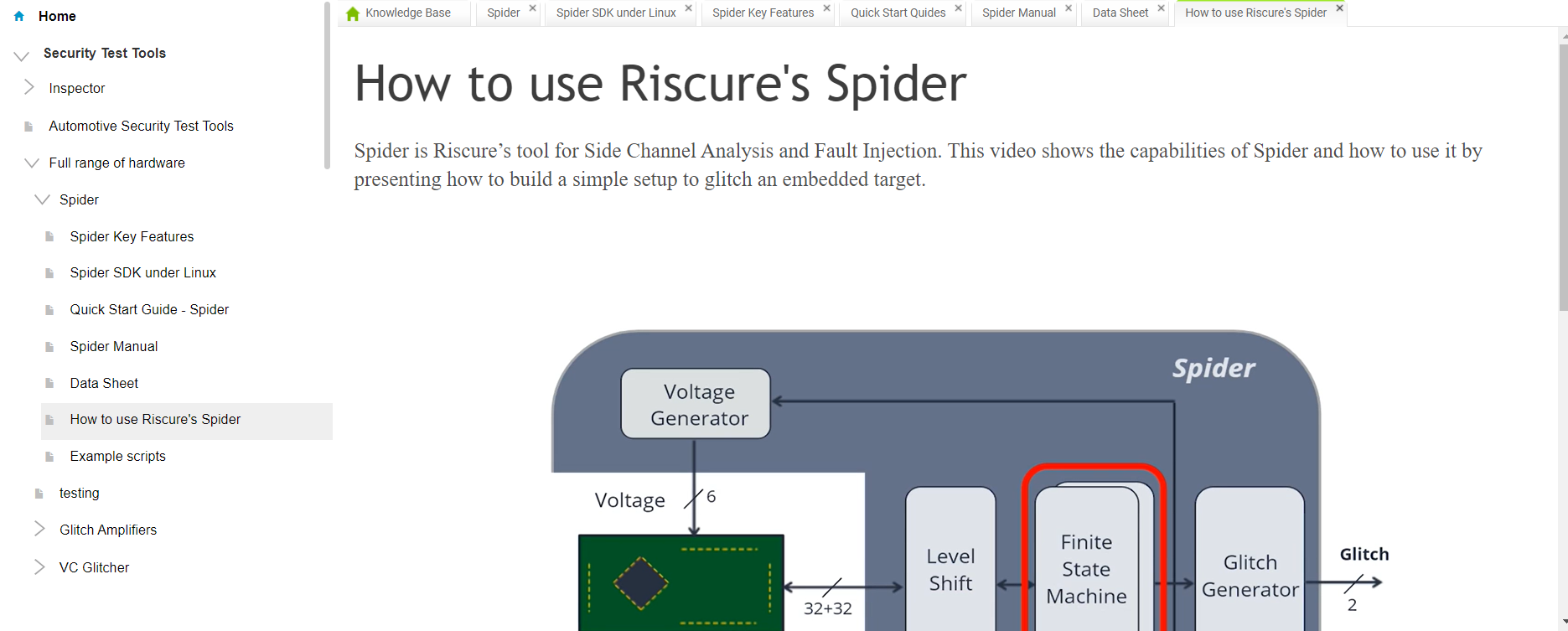
Enhance understanding by adding screenshots, diagrams, and videos where applicable. Visual aids can help explain complex concepts more effectively than text alone.
Include Examples
Incorporate practical examples and use cases to demonstrate how features work or how to solve common problems. Examples make abstract concepts tangible and easier to understand.
Maintain Accuracy & Relevance
Outdated or incorrect information can confuse the users and reduce user trust. Regularly review and update the documentation to ensure it reflects the latest version of your software.
Enable Navigation
Organize documentation in a logical structure and provide a search function, table of contents, and index to help users quickly find the information they need.
Highlight Key Information
Use callouts, notes, and warnings to highlight important details, tips, best practices, and potential pitfalls.
Encourage Feedback
Allow users to provide feedback on the documentation. User insights can highlight areas for improvement and help you refine the documentation over time.
How to Use Software Documentation Tools to Enhance Software Documentation
Creating software documentation requires a structured approach that enhances the quality, usability, and accessibility of the final documents.
Here’s how you can use software documentation software to create comprehensive software documentation.
Choose the Software Documentation Tool
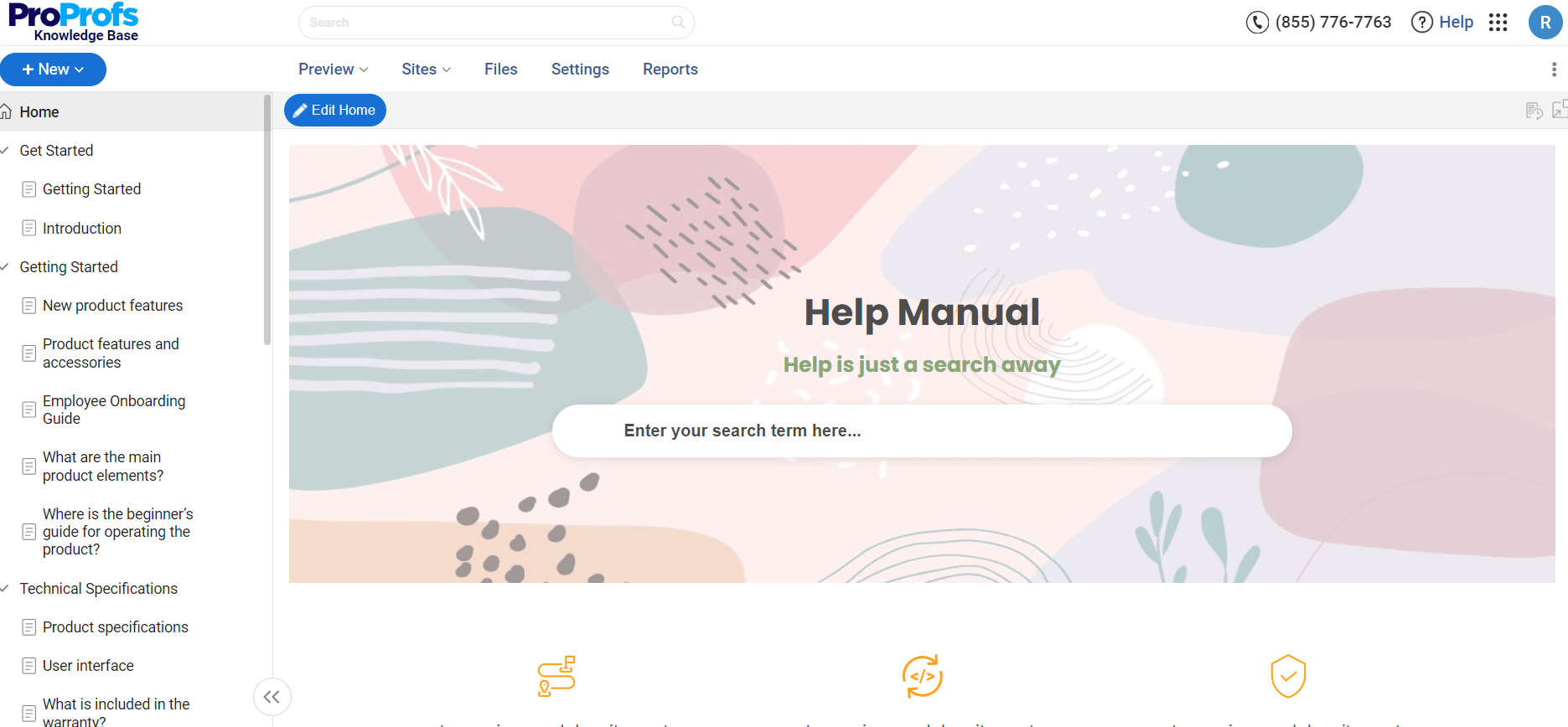
Choosing the right software documentation software significantly impacts the ease of document creation, collaboration, and maintenance.
When choosing software, consider the following factors:
- User-friendliness: The tool should be intuitive and easy to navigate, enabling technical and non-technical team members to create documentation effortlessly.
- Collaboration features: The tool should allow multiple users to work on documents simultaneously, offer version control, and facilitate comments and feedback. This enables teamwork and ensures that documentation is comprehensive and up-to-date.
- Customization & Scalability: The tool should offer enough customization options to match your company’s branding and be scalable to accommodate your project’s growth.
- Integration capabilities: The tool should integrate with other tools used by your team, like project management software, code repositories, and customer support platforms. This integration can streamline workflows and make information more accessible.
- Support & community: There should be adequate support from the software provider, and an active user community can be an invaluable resource for troubleshooting and best practices.
Pick a Software Documentation Template
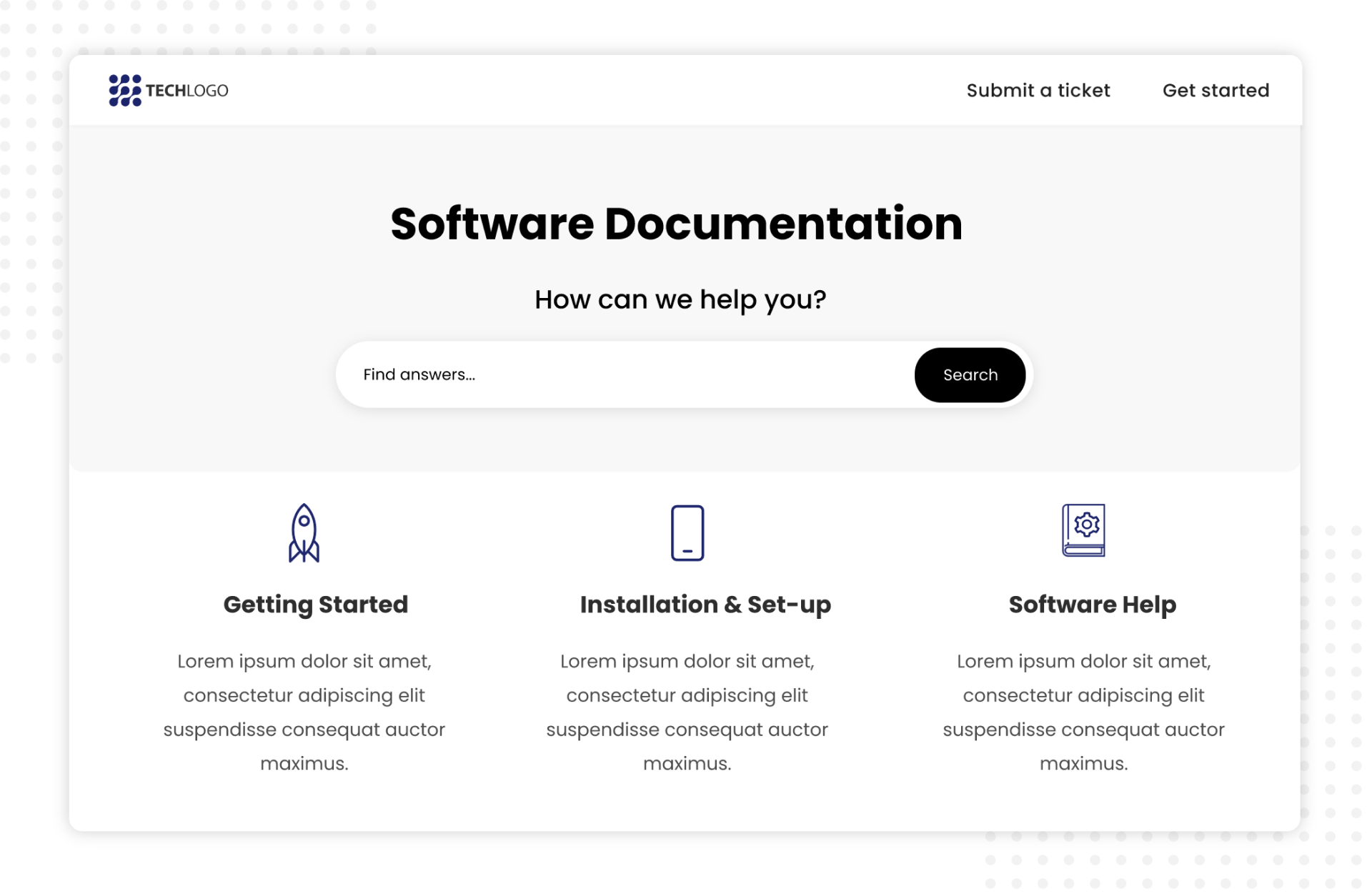
Most platforms offer a variety of software documentation templates designed for different types of documentation, like API documentation, user manuals, FAQs, and more.
They provide a structured framework for your documentation, saving you time and ensuring consistency across documents. You won’t have to start from scratch, as templates come with predefined sections and formatting.
Create Content
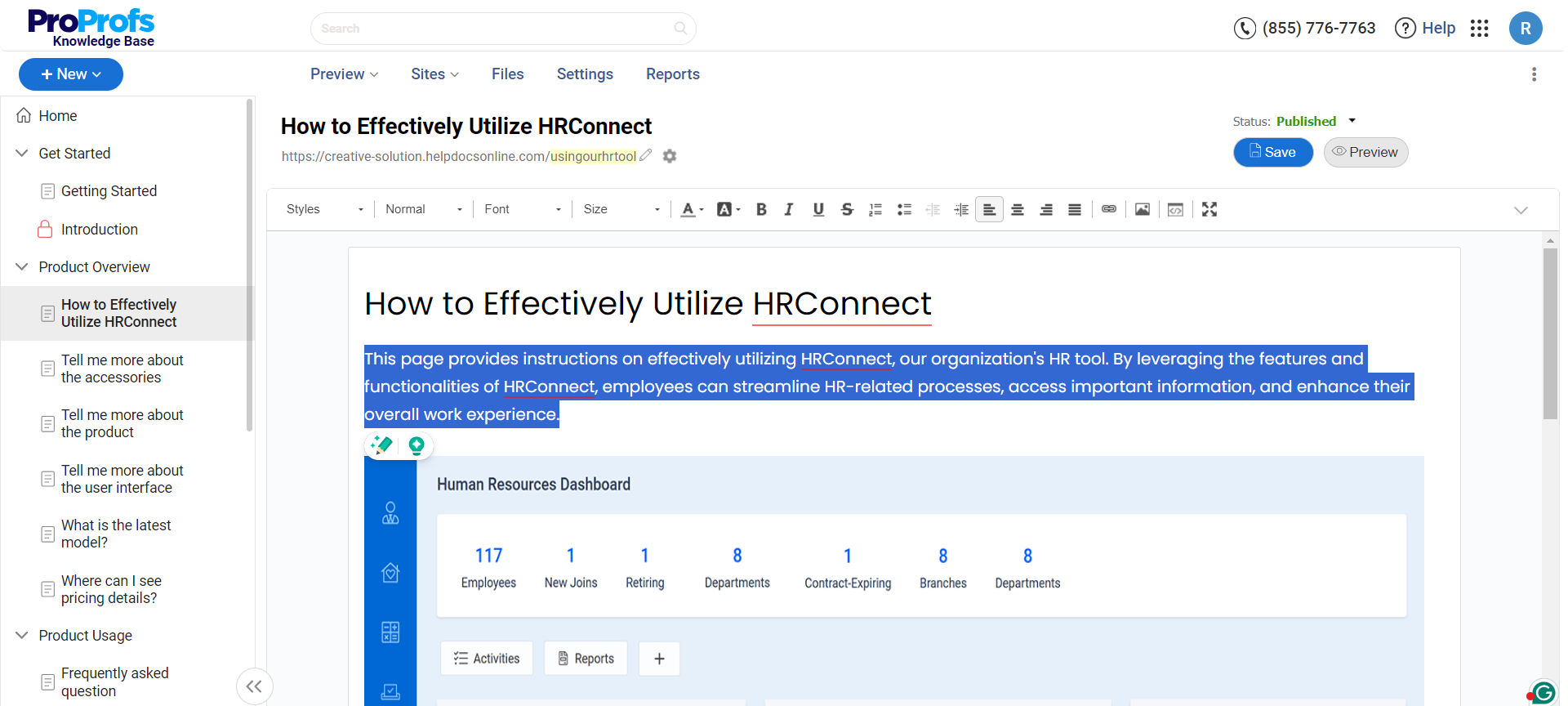
Start creating content based on your plan. Focus on clear and concise writing that conveys information effectively.
Enhance your documentation with diagrams, screenshots, and videos where appropriate to improve comprehension and user experience.
Utilize content snippets or variables for information that repeats across documents. This ensures consistency and simplifies updates.
Collaborate With Team Members
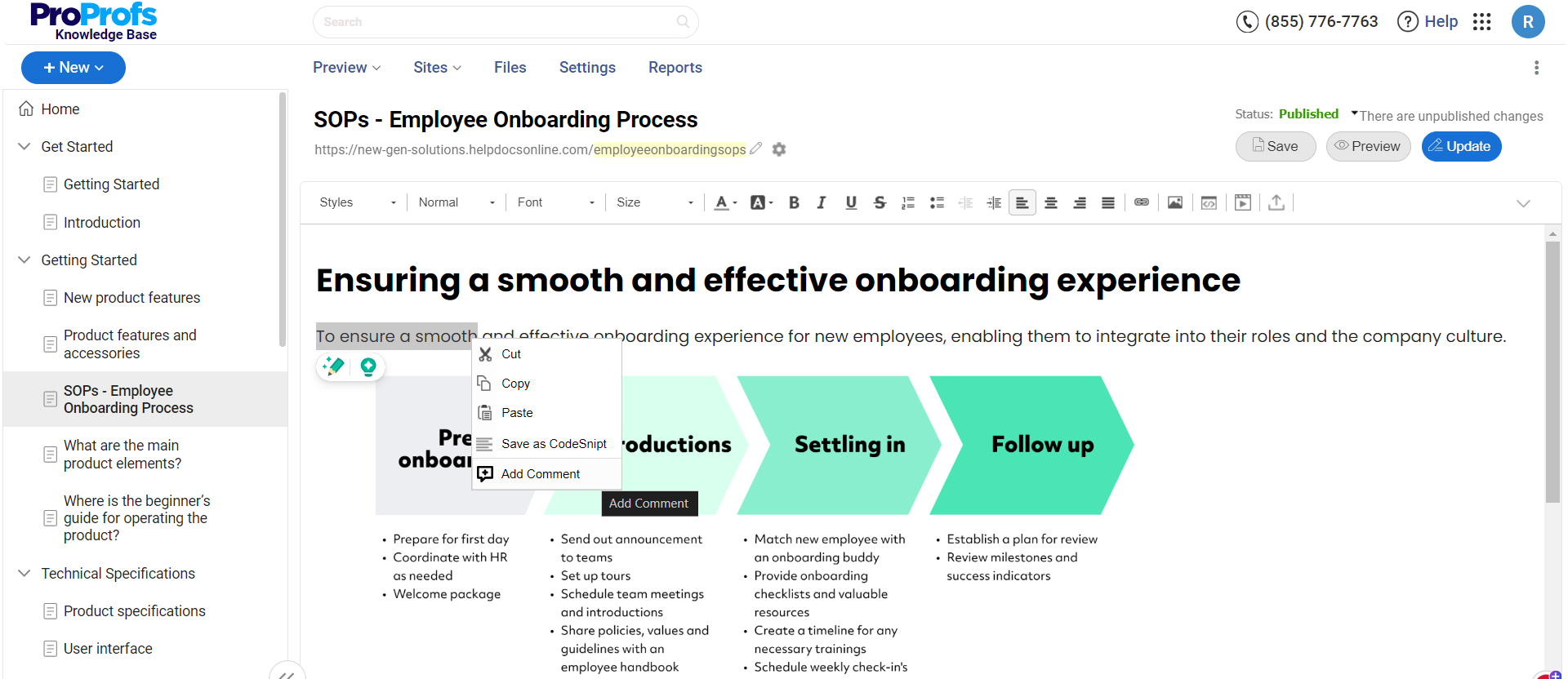
Utilize the software’s collaboration features, like internal comments, to allow multiple contributors to work on the documentation simultaneously.
Set up a review process involving team members from different disciplines (e.g., technical, marketing, legal) to ensure accuracy, completeness, and clarity. Use the tool’s version control features to manage feedback and revisions efficiently.
Publish & Maintain
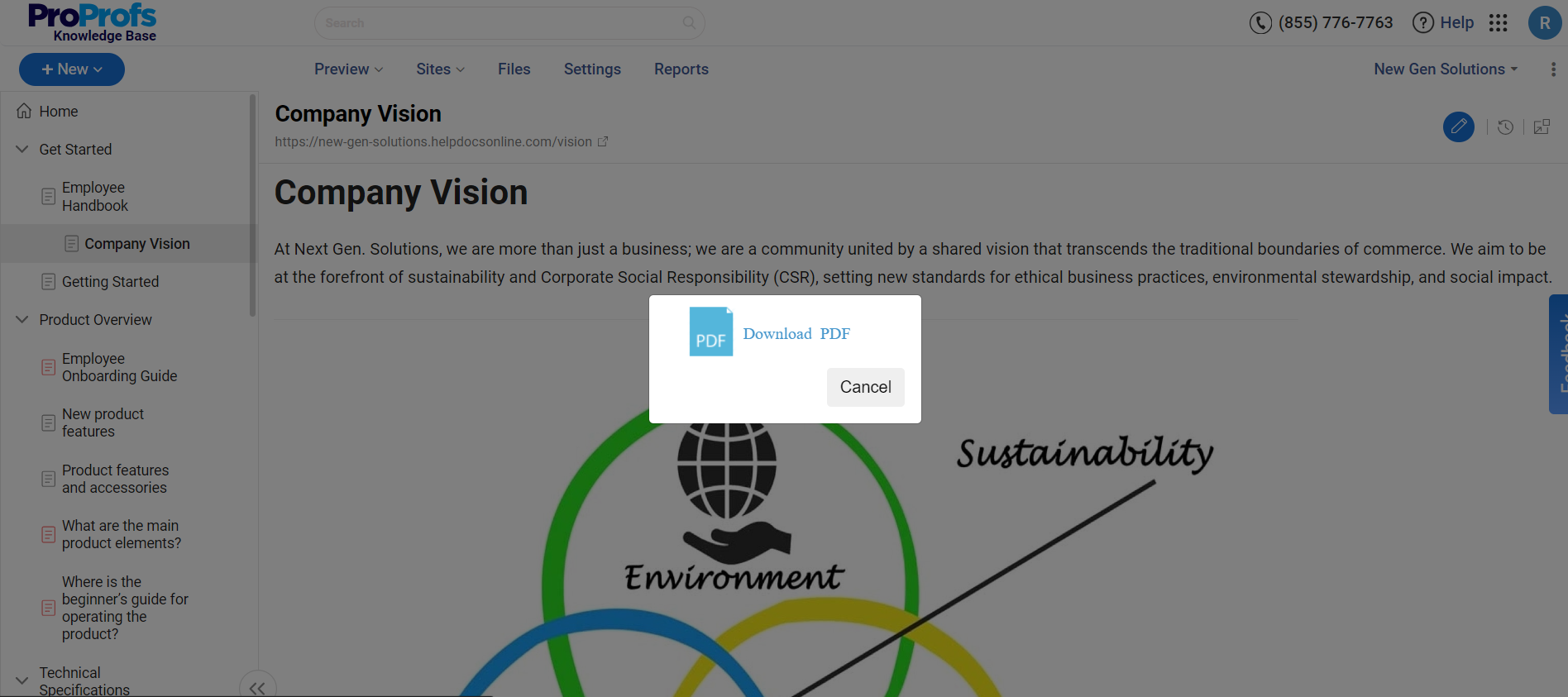
Once the content is finalized and approved, use the software to publish your documentation. This could involve generating static site outputs, PDFs, or online help centers.
Regularly update the documentation to reflect software updates, bug fixes, and user feedback. Use the tool’s analytics features to understand how your documentation is used and identify areas for improvement.
| Related blog: 15 Best Software Documentation Tools of 2024 |
Build Software Documentation that Elevates Customer Experience
Software documentation is not just about writing but also about structuring, designing, and leveraging analytics for performance improvement.
The steps mentioned above will help you kickstart the process in the right direction and launch your documentation successfully.
When implementing the steps, it’s essential to have a powerful documentation tool to give wing to your efforts, thus expediting the process and bringing impeccable results.
ProProfs Knowledge Base is one such tool that can be employed for this purpose. It’s simple, feature-packed, and integrates seamlessly with several third-party applications, thus promising a top-class experience.
It is equipped with an AI-powered WYSIWYG text editor with built-in prompts to accelerate your documenting error-free. You can easily assign different roles and permissions to users, like admin, contributor, writer, editor, or your custom roles, to ensure they’ve appropriate access.
FREE. All Features. FOREVER!
Try our Forever FREE account with all premium features!